Implementing User ID Tracking with GA4 and Google Tag Manager

Recently with the shift to GA4, I took a dive into how to implement user ids in Google Analytics 4. Prep for 2024 best practices and data privacy mandates now, with my easy to use guide:
Step 1: Understanding & Legalities

In today's evolving digital landscape, understanding the nuances of data and its tracking mechanisms is no longer just a marketer's game; it's imperative for anyone with a digital presence. Let's embark on this journey of comprehending the underpinnings of User ID tracking, especially in the new world of Google Analytics 4 (GA4).
Why User ID Tracking Matters
At the crux of any digital analytics strategy is the goal to understand users: their behaviors, preferences, and interactions. User ID tracking serves as a beacon in this endeavor, allowing businesses and website owners to piece together a more cohesive picture of their audience's journey.
By capturing a unique User ID, we're not just tallying numbers or tracking faceless sessions; we're gaining insight into individual user journeys across devices and sessions. This granular view enables us to tailor user experiences, optimize marketing strategies, and foster deeper connections with our audience.
Navigating the Terrain of Data Privacy
However, with great data comes great responsibility. We are in an era where data privacy isn’t just a good-to-have; it's mandated. Regulations like the General Data Protection Regulation (GDPR) in Europe, the California Consumer Privacy Act (CCPA) in the U.S., and similar legislations across the globe underscore the significance of responsible data handling.
When implementing User ID tracking, it’s paramount to:
- Inform & Obtain Consent: Always be transparent with your users about what data you're collecting and how it will be used. Ensure you obtain explicit consent before collecting and processing their data.
- Anonymize When Possible: While User IDs can provide deep insights, ensure that these are not directly identifiable. They should be pseudonymous markers, ensuring user anonymity.
- Store Safely: Prioritize data security. Ensure that User IDs, like all sensitive data, are stored and transmitted securely.
As we advance further into the realms of GA4 with Google Tag Manager, it's imperative to blend technical prowess with ethical considerations. In the upcoming sections, we'll delve into the practicalities of implementing User ID tracking, but always with an eye on maintaining the sacred bond of trust with our users.
Step 2: Identifying the User ID in Cookies
When a user lands on a website, a small piece of data known as a cookie is often stored on their device. This crumb of information can hold various types of data, such as user preferences, session data, and, in our case, potentially a User ID. Understanding and identifying this data within a browser is our next mission.
Finding Cookies in Your Browser
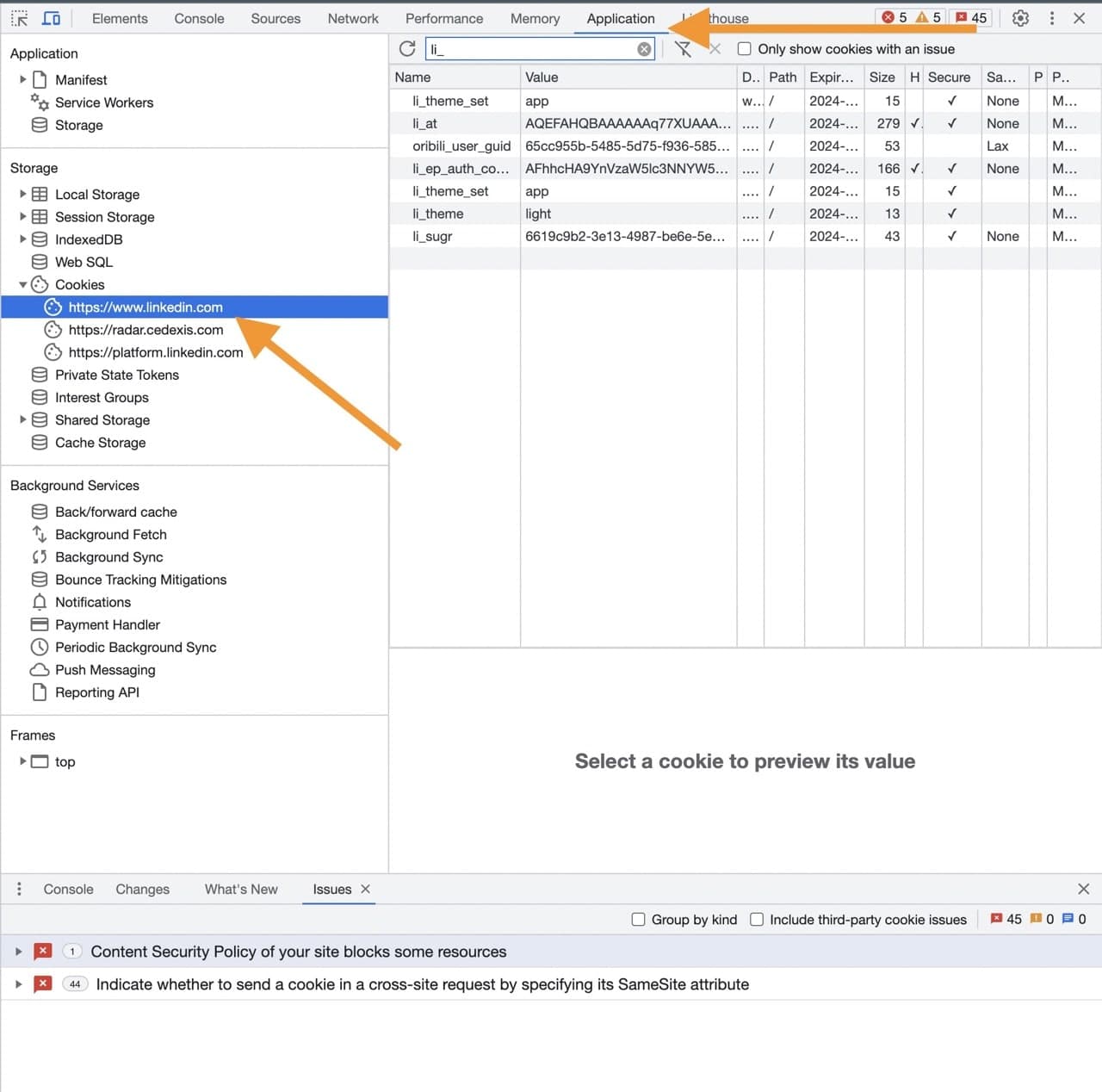
Unveiling the cookies stored during a browsing session typically involves delving into your browser's Developer Tools. These can generally be accessed via right-clicking on your webpage and selecting 'Inspect' or using the shortcut Ctrl+Shift+I (Windows) or Cmd+Option+I (Mac). Navigate to the 'Application' tab to explore the cookies under the 'Cookies' section in the left-hand menu.
Spotting the User ID
Identifying the User ID within the cookies may pose challenges, particularly with potential encryption or varied formats. Insightful observation and possibly liaising with your development team might be required to decode the specifics.
Step 3: Setting Up Google Tag Manager
Before diving into data layers and tags, establishing a foundation with Google Tag Manager (GTM) is imperative. For those new to this platform, GTM allows you to manage and deploy snippets of code or tracking pixels on your website without having to modify the code.
Creating a GTM Account and Container
Navigate to the Google Tag Manager website and sign in with your Google account. Create a new account, and within that, establish a new container, which will hold your tags. Ensure it's set for 'Web' usage.
Installing GTM on Your Website
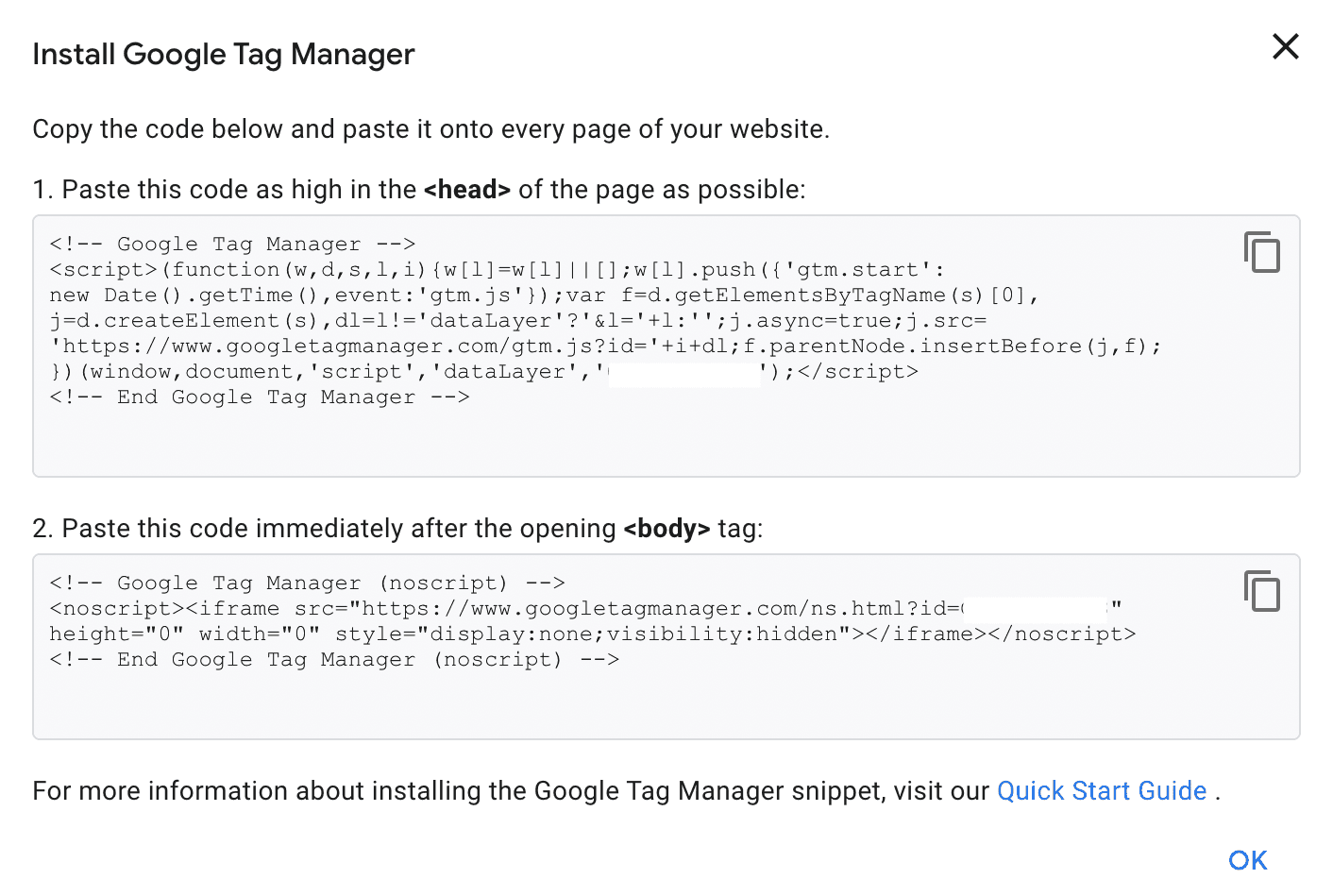
Post-creation, GTM will provide two snippets of code. These need to be added to every page of your website – one in the <head> and the other in the <body> section. Assistance from your web developer or a website management platform might be needed to implement this smoothly.
Step 4: Extracting User ID with a Custom JavaScript Variable in GTM
Within your GTM container, navigate to 'Variables' and click 'New'. Select the variable type as 'Custom JavaScript' and input the following code:
Constructing a New Variable
Within your GTM container, navigate to 'Variables' and click 'New'. Select the variable type as 'Custom JavaScript' and input the following code:
function() {
              var cookies = document.cookie.split(';');
              for (var i = 0; i < cookies.length; i++) {
                var cookie = cookies[i].trim();
                if (cookie.indexOf('your_user_id_cookie_name=') == 0) {
                  // your code here...
                }
              }
            }
Note: Replace 'your_user_id_cookie_name' with the actual name found in your cookies. This function sifts through the user's cookies, seeks the specified User ID, and returns it, allowing us to utilize this variable in future tracking tags.
Step 5: Configuring GTM Tags to Send User ID to GA4
The articulation between GTM and GA4 is crafted through meticulous tag configuration, ensuring the seamless transmission of our extracted User ID to our GA4 property.
Creation and Calibration of GA4 Tags
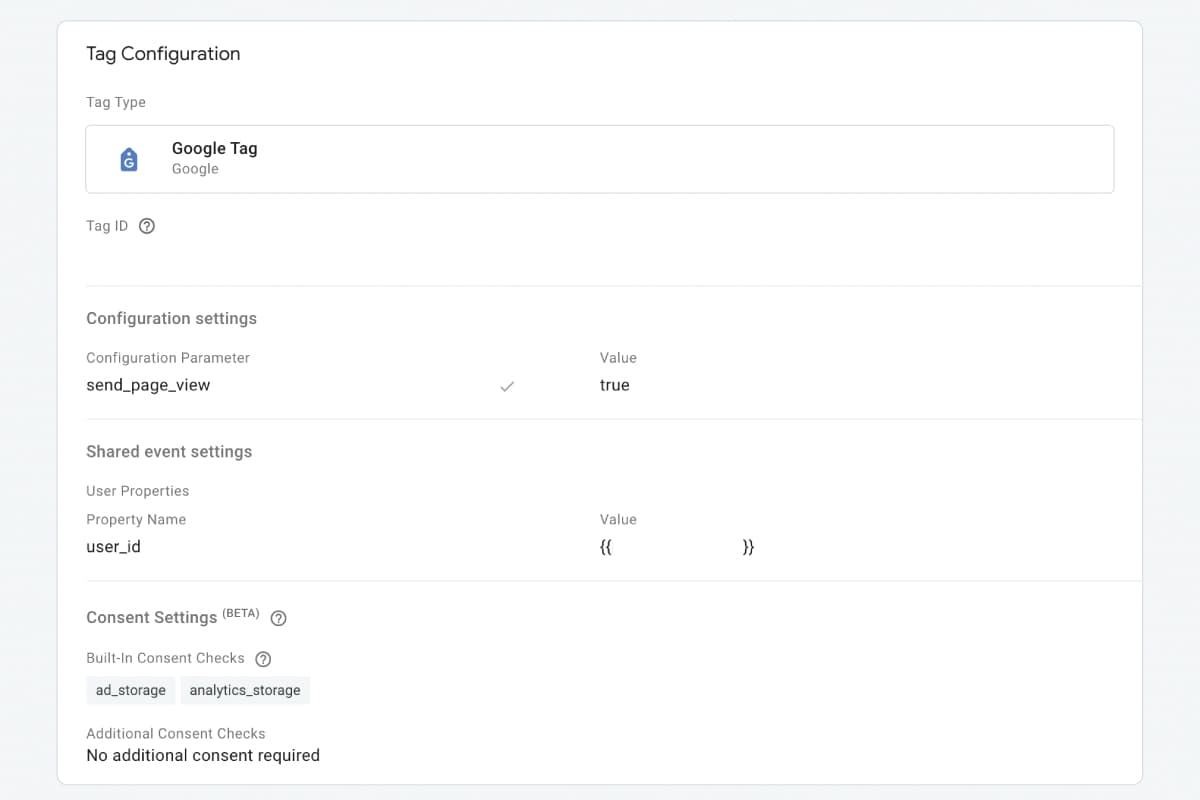
In the 'Tags' section within GTM, create a new tag, selecting 'GA4 Configuration' and inputting your GA4 Measurement ID. Ensure ‘Fields to Set’ contains a new row, assigning 'user_id' as the Field Name and your previously created variable as the Value.
Verifying Tag Configuration
Once configured, utilize GTM’s 'Preview' mode to validate the tag’s functionality, ensuring the accurate extraction and transmission of User ID data prior to live deployment.
Step 6: Trigger Setup in GTM
Triggers in GTM act as condition evaluators, determining the instances in which your configured tags are fired and data transmitted to GA4.
Defining Your Trigger Conditions
Consider the precise scenarios in which you wish to capture User ID data, configuring triggers that align with these instances, ensuring relevant, accurate data capture.
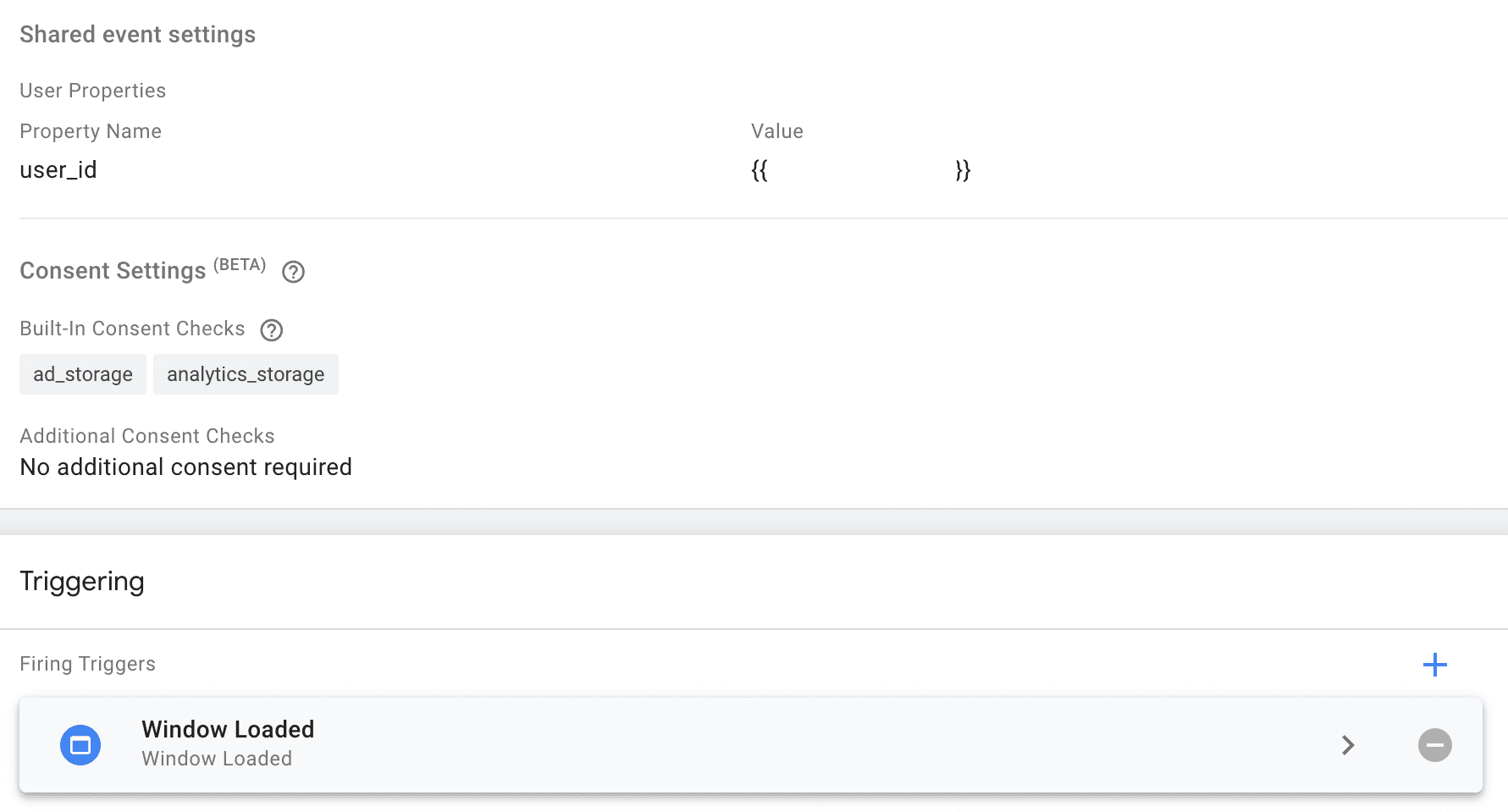
I use a Custom Trigger, after the window has fully loaded, the tag can then fire. This is to ensure that Google Tag Manager has the least impact on website loading speed as possible.
Trigger Assignment to Tags
Assign your defined trigger to your GA4 tag, affirming the connection between your data, trigger conditions, and data transmission tag within GTM.
Step 7: Publishing the GTM Container
Engaging GTM’s 'Preview' mode enables a sandboxed environment for testing and debugging, ensuring the accuracy of your data flows and configurations.
The transition from configuration to live deployment is facilitated through publishing your GTM container, enabling your setup to begin capturing and transmitting live user data to GA4.
Ensuring Documentation and Version Control
Thoroughly document your configurations, changes, and rationales, utilizing GTM’s version control capabilities to archive setups and facilitate any future audits, rollbacks, or troubleshooting endeavors.
Confirming Live Data Transmission
Post-publishing, revisit GA4’s Realtime report, validating the live transmission of User ID data and confirming the successful deployment of your GTM configurations.
Step 8: Validating Data in Google Analytics 4
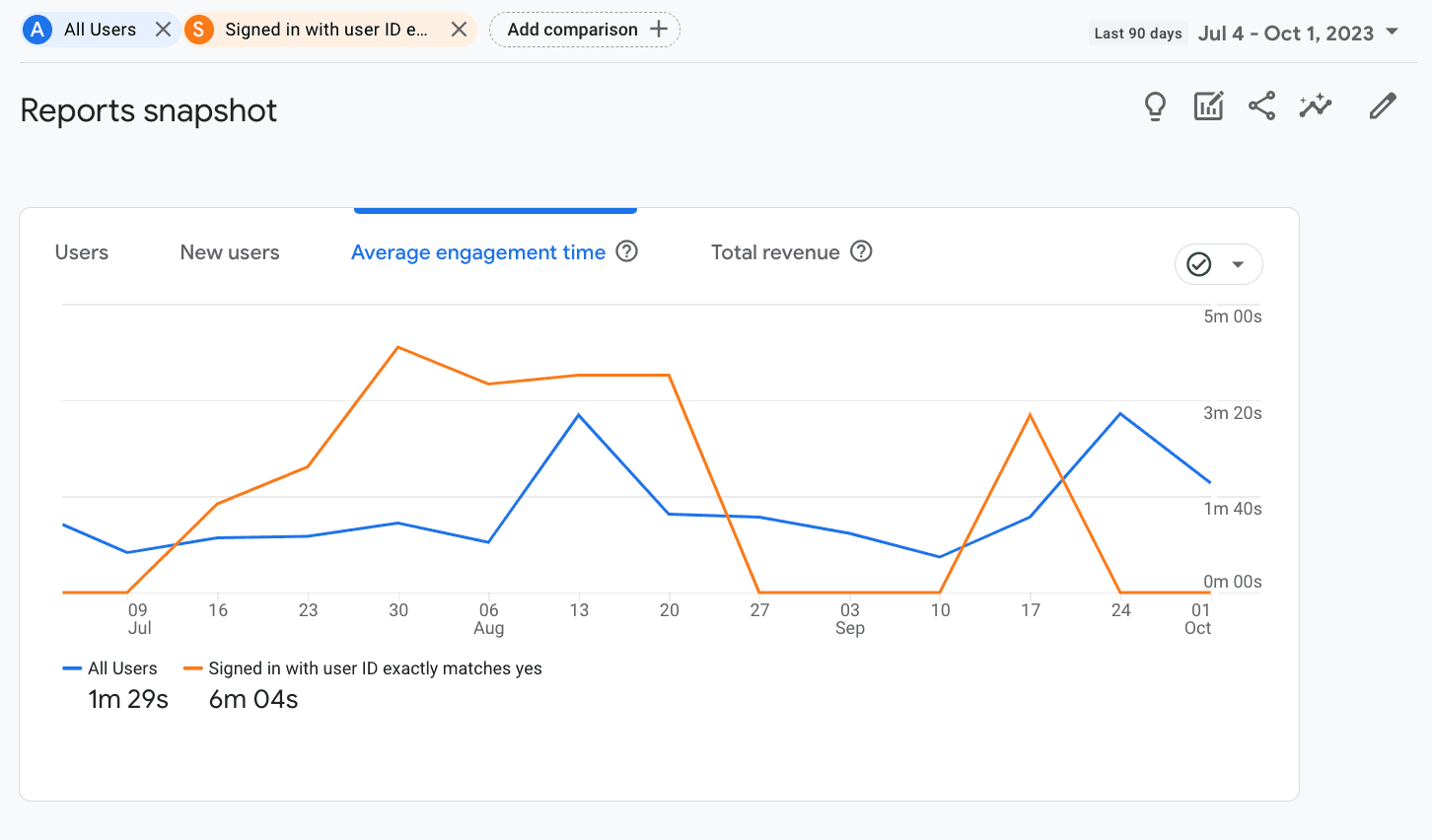
With live data flowing into GA4, validation of the accurate capture, transmission, and reporting of User IDs solidifies the functionality of your setup.
Ensuring Accurate User ID Reporting
Scour GA4 reports, ensuring User ID data presents as expected and aligns with the on-site behaviors and conditions you’ve configured within your GTM triggers.
Rectifying Any Data Discrepancies
If misalignments or errors present, trace the data flow back through your GTM setup, identifying, and rectifying any configuration issues or data discrepancies.
Step 9: Leveraging User ID in GA4 Reports
The culmination of your efforts is realized through the application of User ID data within GA4, employing this granular user data to enhance reporting, insights, and subsequent strategy formulation.
Deploying User ID Data in Reporting and Analysis
Integrate User ID data into your GA4 reports, utilizing this unique user metric to deepen analysis, enhance user journey understanding, and guide strategic decision-making.
Translating Data into Actionable Strategy
Translate insights into action, employing the deepened user understanding afforded by User ID tracking to optimize user experiences, guide marketing strategies, and enhance user engagement and conversion across your digital presence.